![LOGO_WV-1.png]](https://help.martianlogic.com/hs-fs/hubfs/LOGO_WV-1.png?height=40&name=LOGO_WV-1.png)
Step 1.
You will need to create your form as an E-Form.
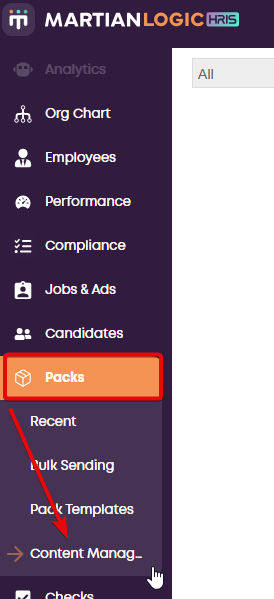
Click on 'Content Manager' located under Packs from the left hand side of your screen.
Step 2.
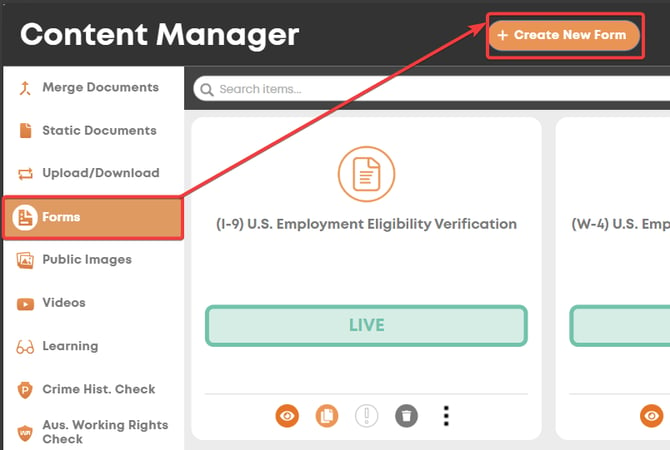
Select 'Forms' from the left hand side of your screen and click on 'Create New Form' located on the top right hand side of your screen.
Step 3.
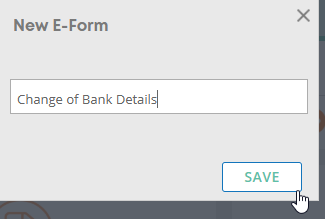
Label your form and click 'Save'
Step 4.
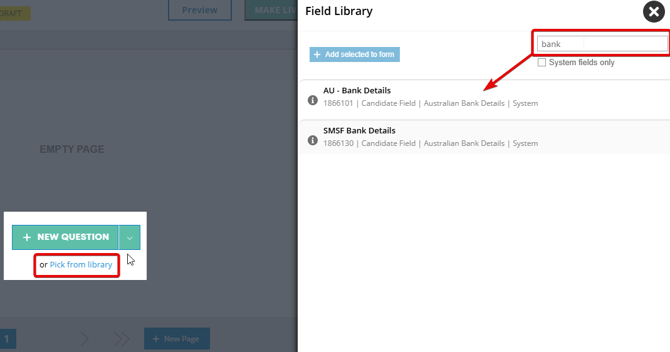
Begin adding your fields/questions to your form. You can select already created fields by selecting 'Pick from Library'
Fields used anywhere else in the system can be found in the library e.g. Name, Surname, Bank Details etc.
Step 4.2.
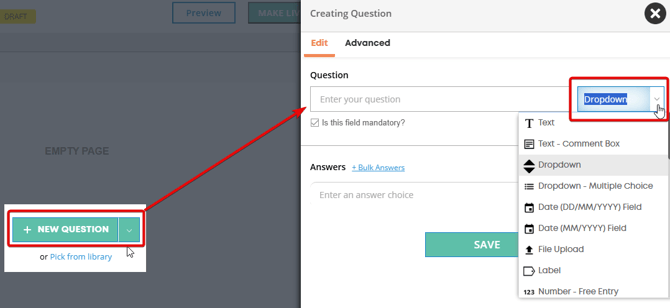
If you wish to create a new field, select 'New Question' and create your field type then save.
Step 5.
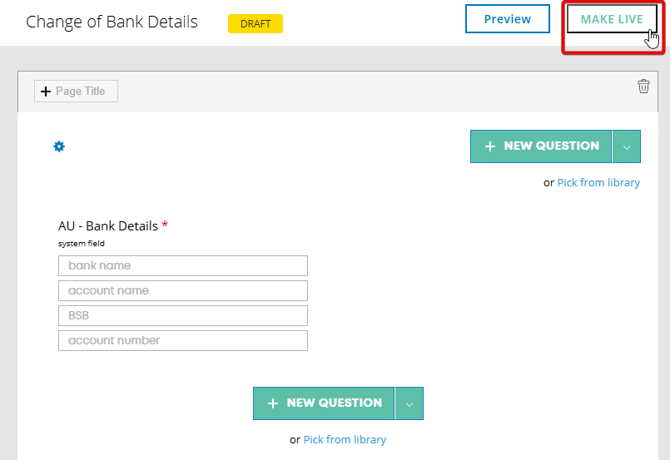
Once you're happy with the fields added to your form, select 'Make Live' from the top right hand corner.
Step 6.
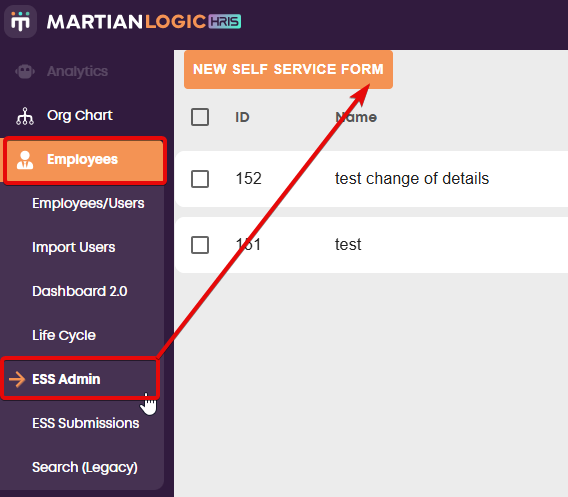
Return to your Martian Logic home page and select 'ESS Admin' from the 'Employees' tab, located on the left hand side of your screen.
Select 'New Self Service Form' from the top left hand side of your screen.
Step 7.
A window will appear with required selections.
Ensure you are clear when labelling your form in the 'Name' field, as this is the name that will appear in your form submissions.
Select form type.
Select your e-form from the drop down search menu.
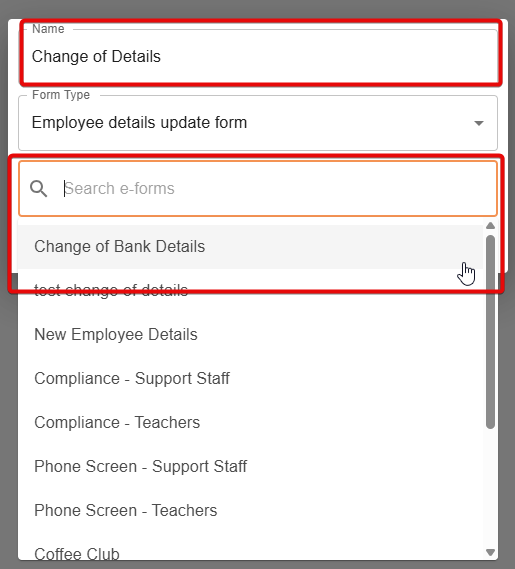
Step 8.
Select 'Create'
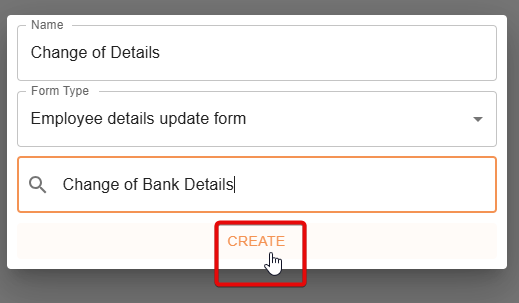
Step 9.
Your form will appear as a tab under 'New Self Service Form'
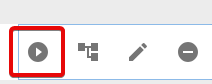
From the right hand side of the tab, select the play symbol, making the form live.
NOTE:
To create a workflow against your form, select the button between the play and pen icon. A tab will appear allowing you to assign approvers to the form. This can be useful if your form needs to be sent to another user once completed by the employee. An instruction guide is available here.

THE EMPLOYEES POV:
The form that was made live, will now appear from the drop down menu of an employees self service portal, under 'Forms'
The employee can now access and submit the form.
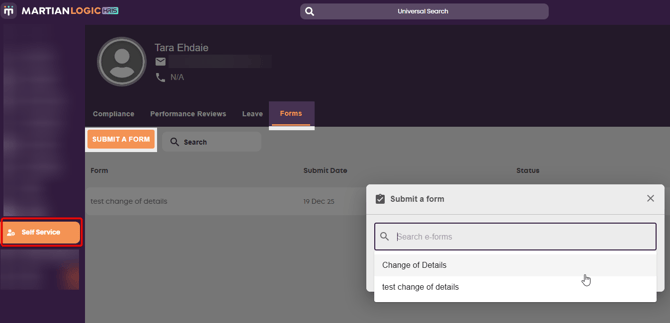
Step 10.
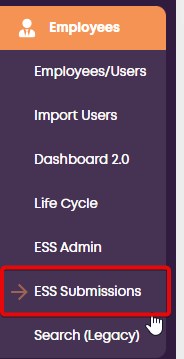
Once the form has been completed, it will appear under 'ESS Submissions' from the 'Employees' tab.
The system will also notify the user that a form has been completed via email.
Select 'View' to view the submitted form.