![LOGO_WV-1.png]](https://help.martianlogic.com/hs-fs/hubfs/LOGO_WV-1.png?height=40&name=LOGO_WV-1.png)
Select Employees -> ESS Admin
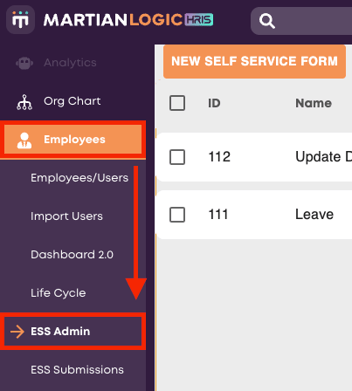
Select the workflow icon shown below.

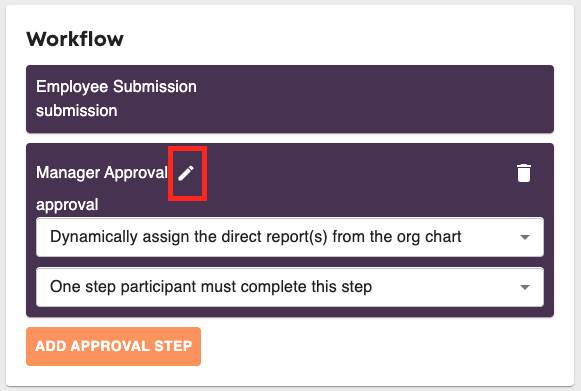
The first step in the workflow will always be the employee submission. To add another step, press 'Add Approval Step'.
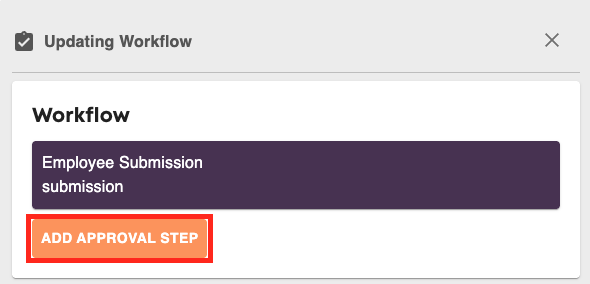
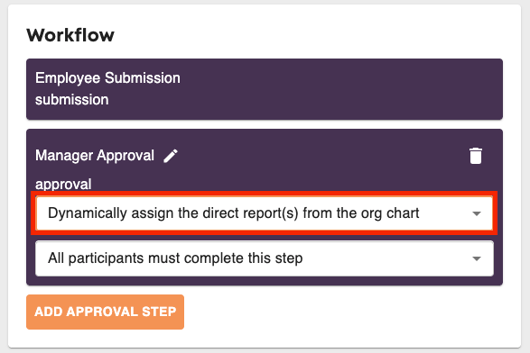
From here, you can either manually assign key approvers to the workflow, or dynamically pull the direct manager from the org chart. In the example below, we are going to pull from the org chart.
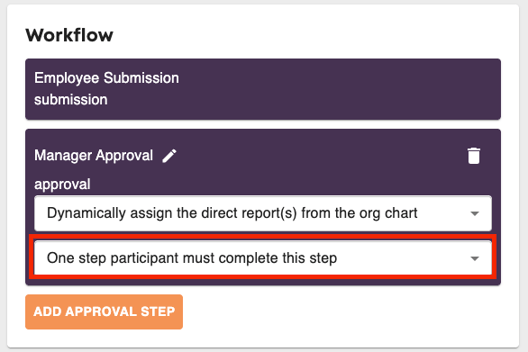
The final option will dictate whether all assigned managers need to approve in order to finalise the form, or if it will be finalised with one approval. This is particularly useful when you have employees reporting to a group node containing multiple managers, but only one of those managers needs to acknowledge and approve the request to finalise it. This is shown below.
Finally, you can give this workflow step a name. By default it will be named 'Manager Approval'. To change this, press the pencil icon next to the step name.
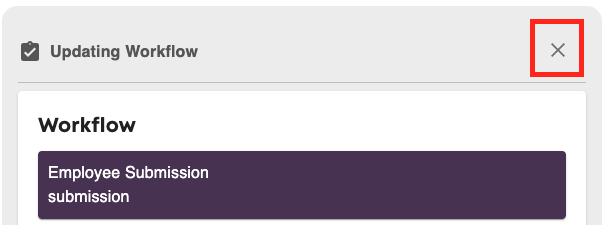
The workflow will automatically save as you work. When you have finished adding all relevant steps, click the cross in the top right corner.
You can then make the Self Service Form live using the button below.