![LOGO_WV-1.png]](https://help.martianlogic.com/hs-fs/hubfs/LOGO_WV-1.png?height=40&name=LOGO_WV-1.png)
Overview
The Veracross integration allows you to keep your staff records in veracross up to date with any changes you make from the Martian Logic Platform. This includes the intial creation of a staff member, any changes that may happen to that person or their position during their tenure, and finally allow you to offboard that person.
Setup
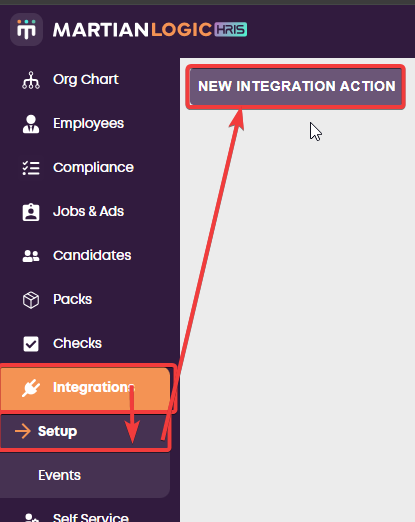
Go to Integrations -> Setup -> New Integration Action
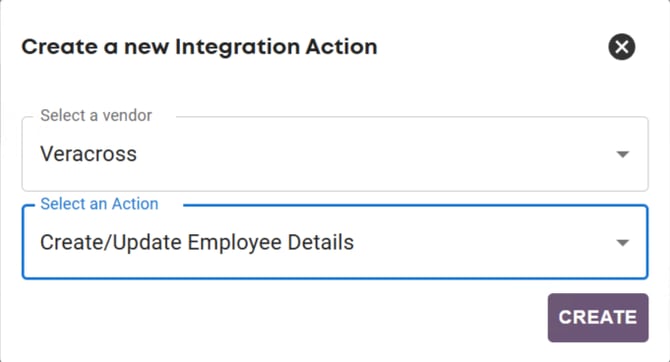
Then select Veracross as the vendor and Create/Update Employee Details as the Action.
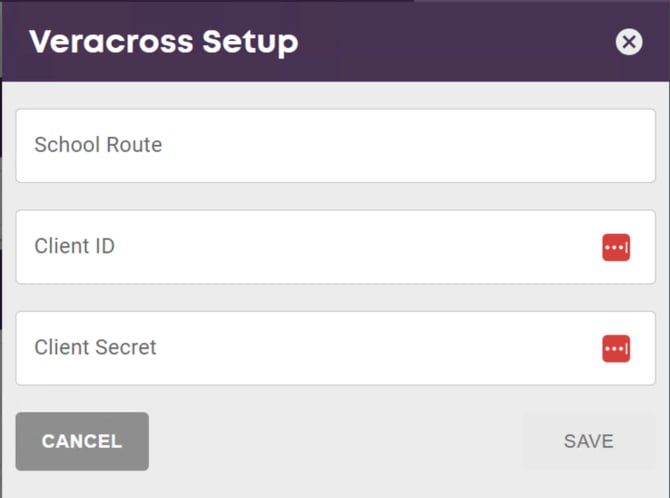
Then provide the required credentials (School Route, Client ID and Client Secret) and click save.
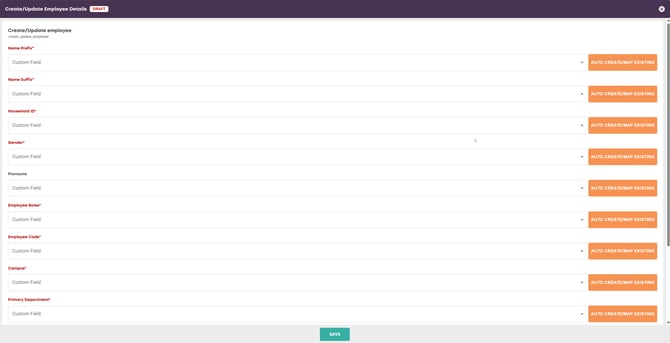
Then you can setup the Create/Update Employee Details Veracross action. You will need to map existing fields or create lookup fields via the "Auto create" button in your Martian Logic account to the Create/Update Employee Details Action. If you require assistance with this contact support@martianlogic.com or your Martian Logic account manager.
Then you can make the action live when you're ready to start using it.
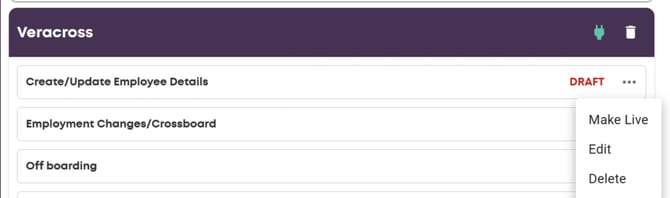
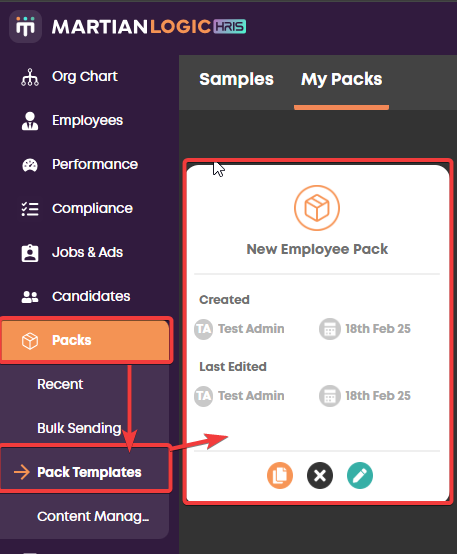
You can now configure that Create/Update Employee Details Action against your Pack Templates. Go to Packs -> Pack Templates. Since this is a Create/Update Employee Details Action we will want to include this on our New Employee Onboarding pack.
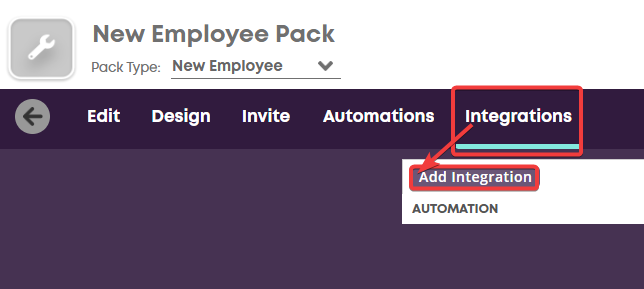
Then go to the Integrations tab and click Add Integration.
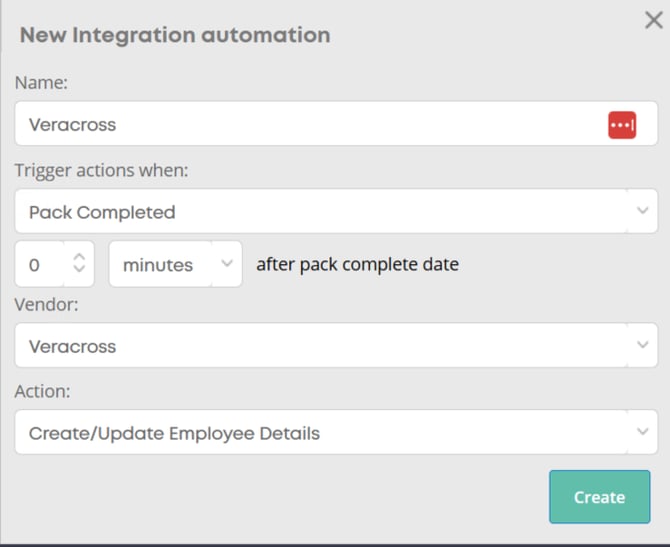
Then give the integration automation a name in this case "Create Employee" seems sensible. Then select Veracross as the vendor and the Create/Update Employee Details action we setup previously.
When finished you should see the create employee integration automation set against your pack.

Now when an employee completes that pack with the new integration automation setup against it the system will automatically attempt to send them to Veracross you can see a record of this and all integrations in the Events page.

You can repeat the same process for other actions avaliable in the Veracross integration, however depending on the action this will determine where you can use an action
For example a Employment Changes/Crossboard action is configured againts the matching Approval Workflow
We can now configure this Action to trigger automatically when a workflow finishes.
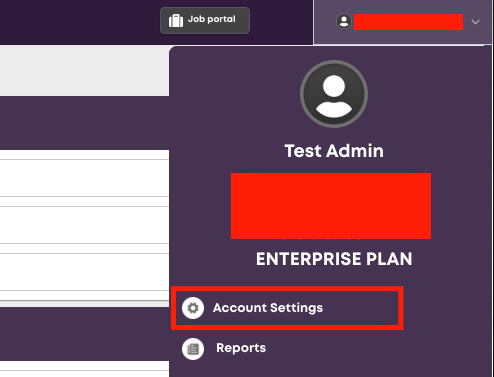
Navigate to your account name in the top right, and select Account Settings.
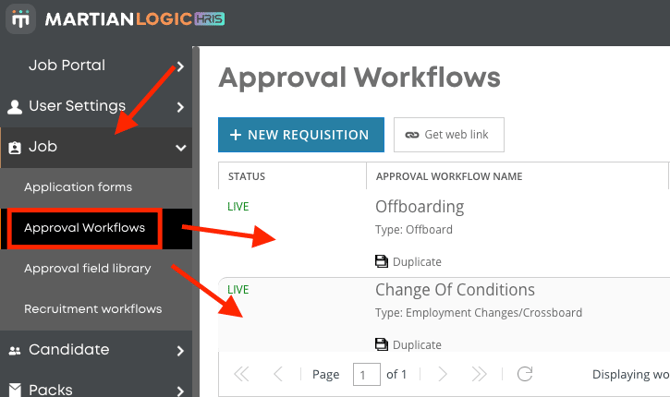
Then, navigate to Job -> Approval Workflows and select either the Offboard or Employment Changes/Crossboard workflow type.
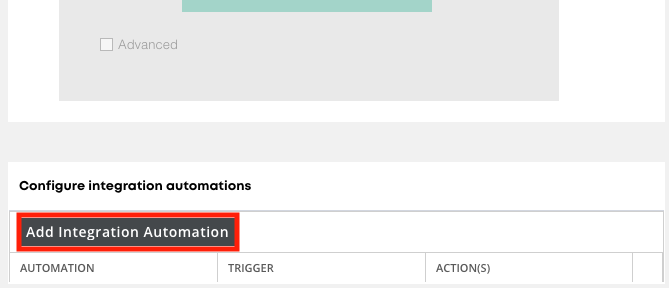
Once in the workflow setup screen, scroll to the bottom to the Configure integration automations area. Select Add Integration Automation.
You will then need to configure the automation. Name the automation to suit your organisation. The Trigger Actions dropdown contains two options, Effective Date Met should be selected to avoid pushing data too early in the process. A delay can be set to this. Select Veracross as the Vendor. When clicking the dropdown on the Action field, select Employment Changes/Crossboard or Off boarding, depending on which workflow you are working on.
Click create when all fields have been filled.
The following scopes are required for the integration:
directory.staff_faculty:list
households:list
staff_faculty:create
staff_faculty:list
staff_faculty:read
staff_faculty:update