![LOGO_WV-1.png]](https://help.martianlogic.com/hs-fs/hubfs/LOGO_WV-1.png?height=40&name=LOGO_WV-1.png)
Bulk Assign to Role
Navigate to Org Chart -> Roles.
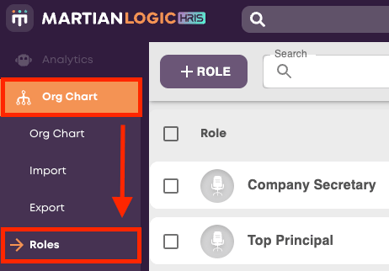
Select the relevant roles by ticking the box to the left of the Role Title. Select all roles by ticking the box at the top of the page.

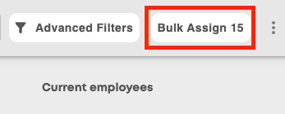
Once the roles are selected, an option will appear at the top right to bulk assign, as well as how many roles have been selected. Click this option.
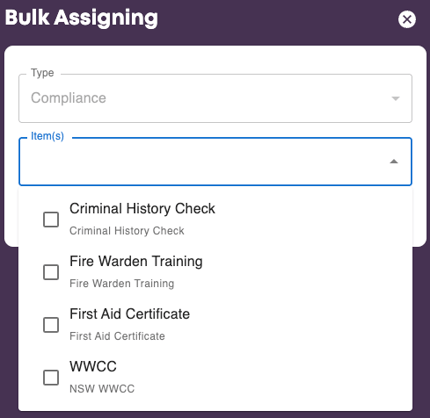
Select the relevant compliance items from the list, you can select multiple and then press 'Assign and Sync'.
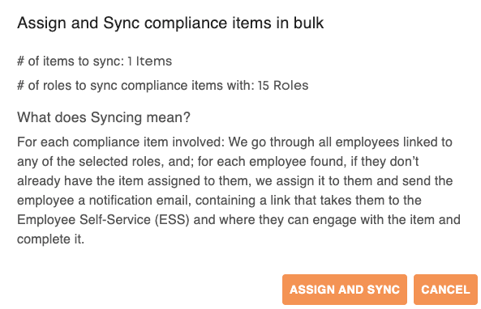
A window will pop up, giving notice of how many items are being assigned, how many roles they are being assigned to as well as an overview of what will happen once they are assigned. To continue, select 'Assign and Sync'.
Directly to Individual Employees
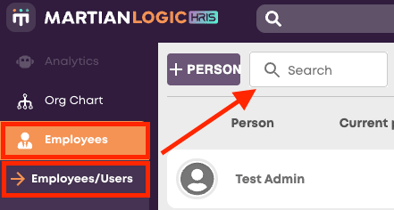
Navigate to Employees -> Employees/Users. Use the search box to find the employee.
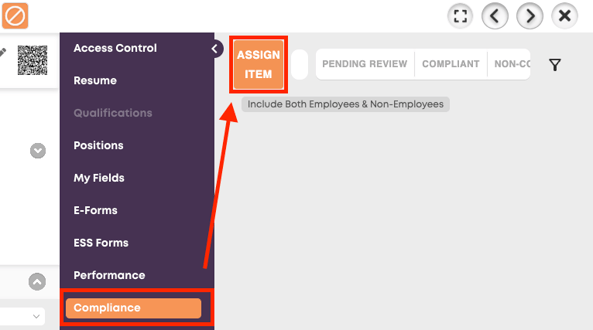
Once you have found and opened your employees' profile, use the middle menu to navigate to 'Compliance'. Then select 'Assign Item'.
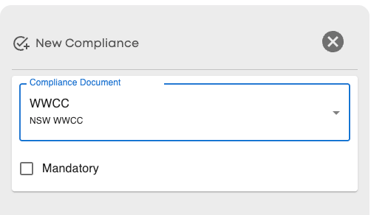
Select the relevant compliance item from the dropdown, then specify whether the completion of the check is mandatory or not. The employee will now have a pending compliance item in their 'Self Service' portal.