![LOGO_WV-1.png]](https://help.martianlogic.com/hs-fs/hubfs/LOGO_WV-1.png?height=40&name=LOGO_WV-1.png)
Process 1: Adding the Employee to the System
Step 1.
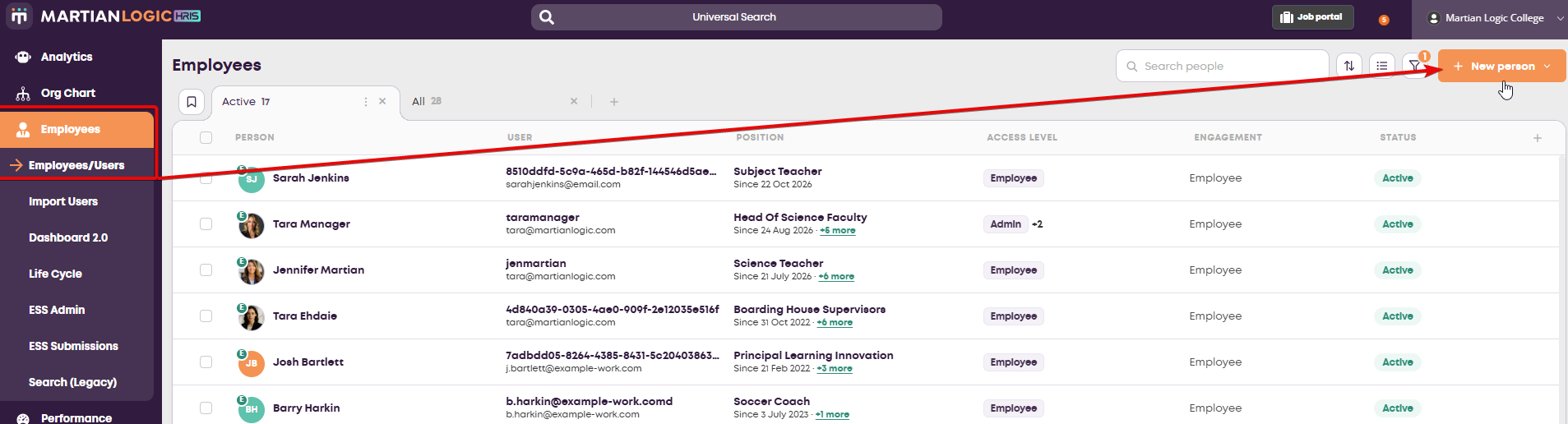
Select 'New person' from the Employees/Users page located under the Employees tab.
Step 2.
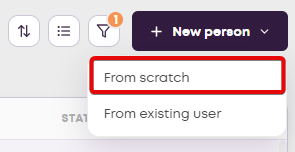
Select 'From Scratch'
Step 3.
Fill in the fields for the employees user access and select from the drop down menu what access level you'd like to assign. Permission Definitions can be found at the bottom of this article.
If you would like to send the user an email notifying them to log in, tick the 'Send account activation email' box. If you do not send this, the user will not be notified.
NOTE: Their username cannot be changed once created. 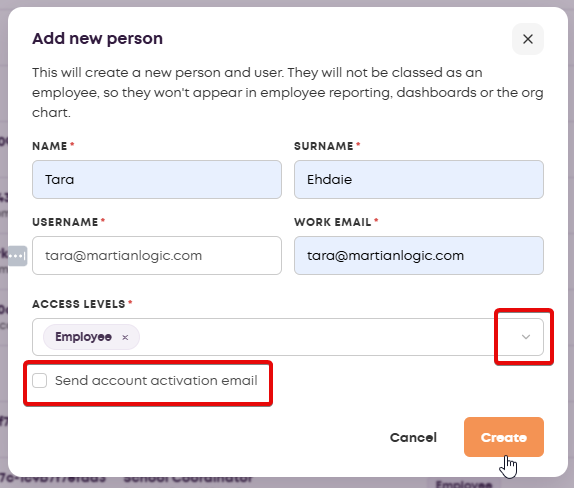
Once you have created the employee, follow Process 2 below to create their role and add them to the org chart.
Process 2: Creating the Employees Role & Adding the Employee to the Org Chart
Step 1.
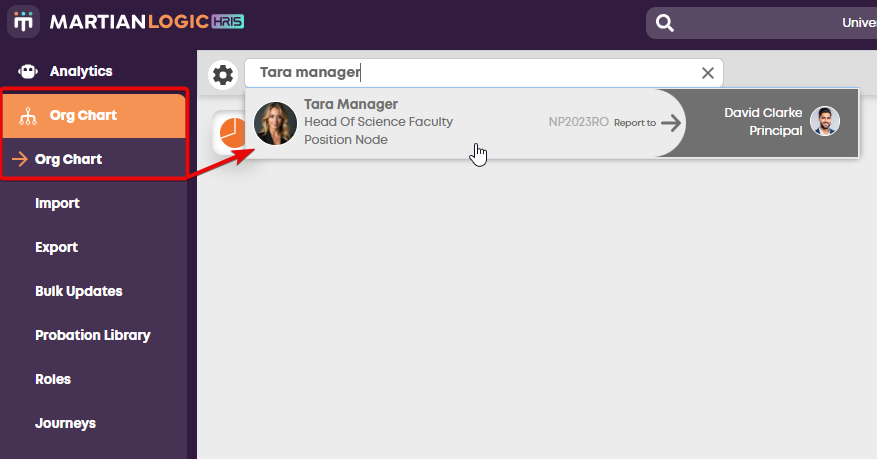
Select 'Org Chart' from the Org Chart menu and find the employee that they will be reporting to
Step 2.
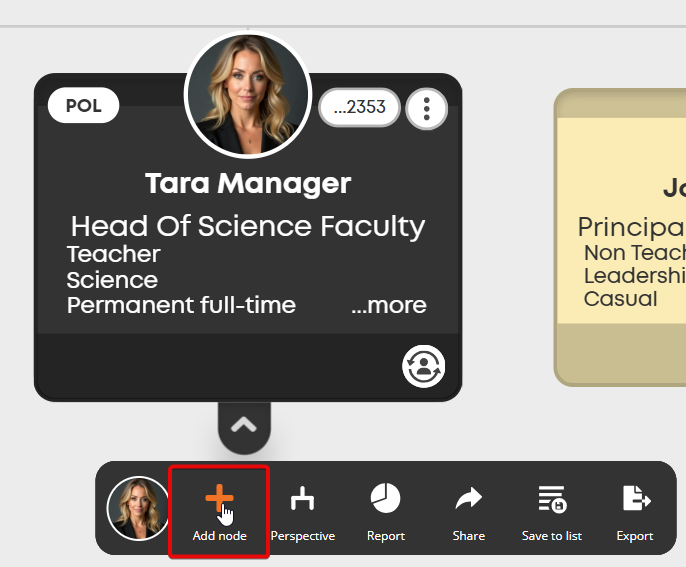
Select the node of the reporting person and a toolbar will appear below the reporting lines node. From the toolbar, select 'Add Node'
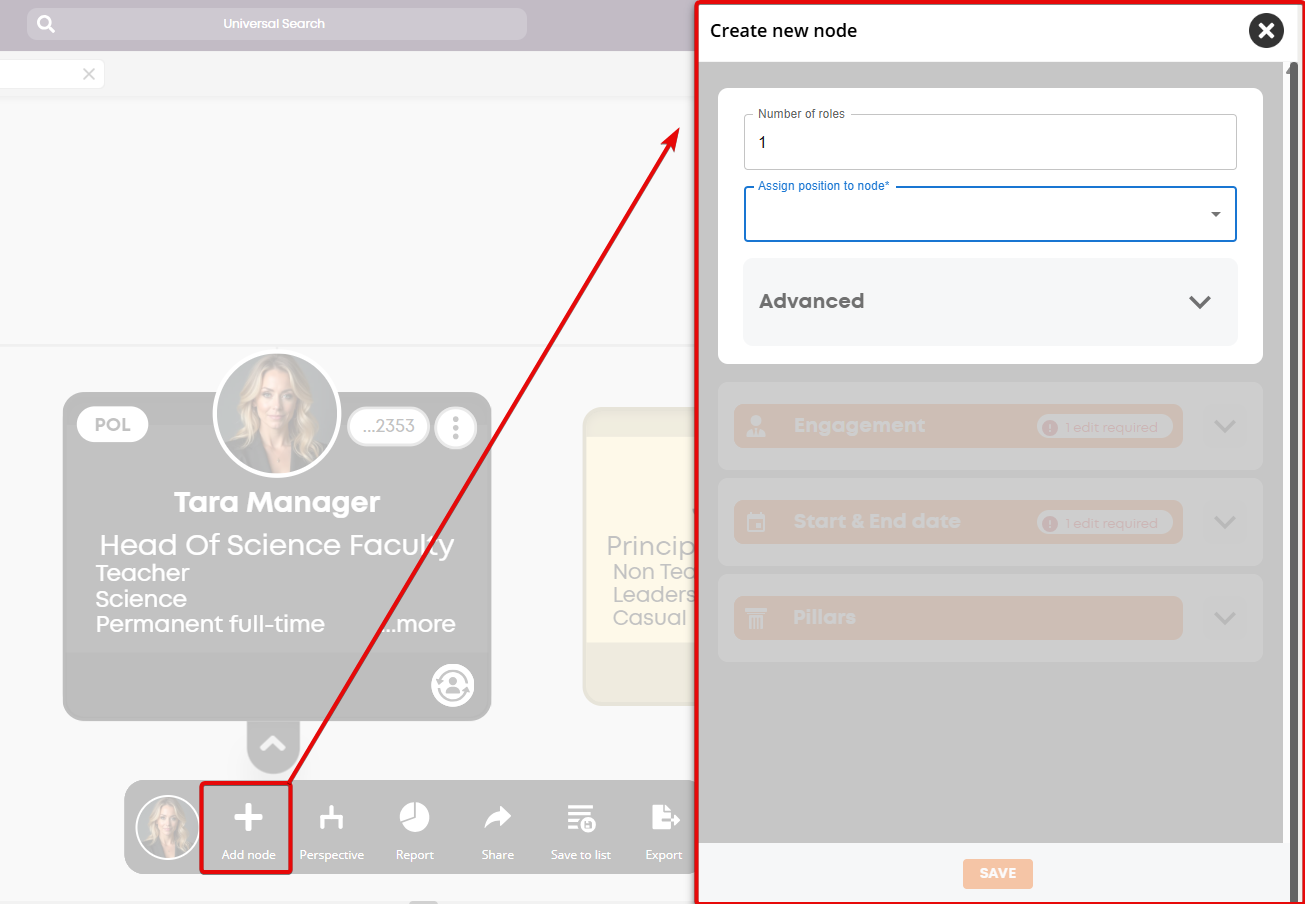
A window will appear, allowing you to fill in the details of the employees role.
Step 4.
Fill out the fields accordingly
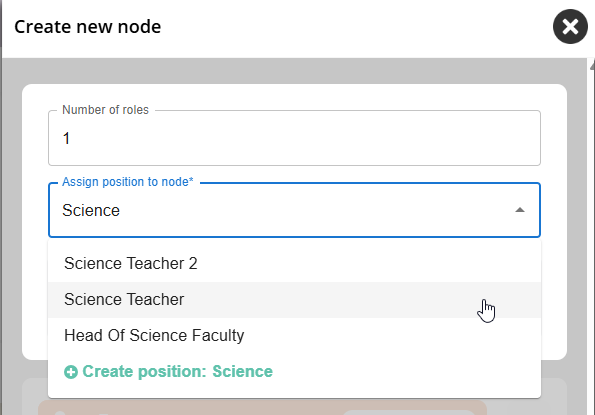
- Enter the position name, or select it from the drop down menu. NOTE: You can create the role if it does not yet exist, by typing the role name into the box and selecting 'Create Position'
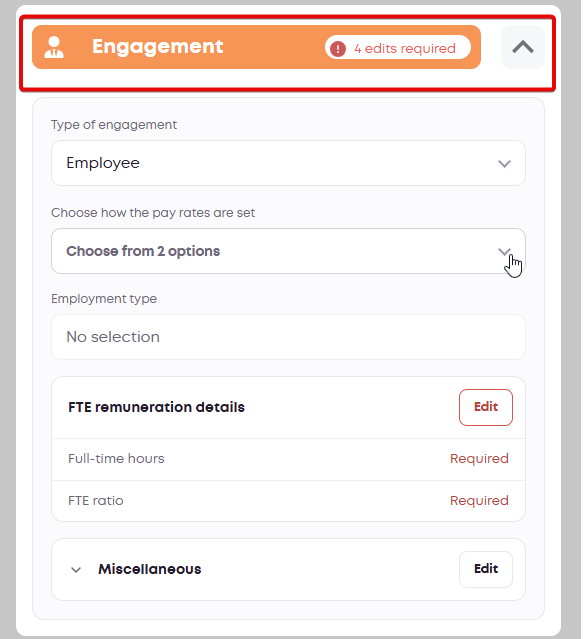
- Fill out the employees engagement details
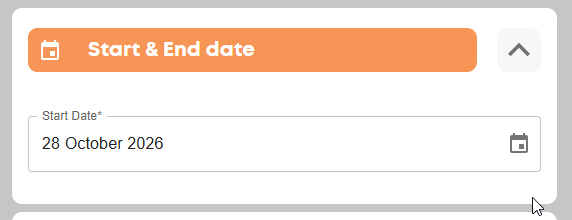
- Fill out the employees start date. This can be in the past.
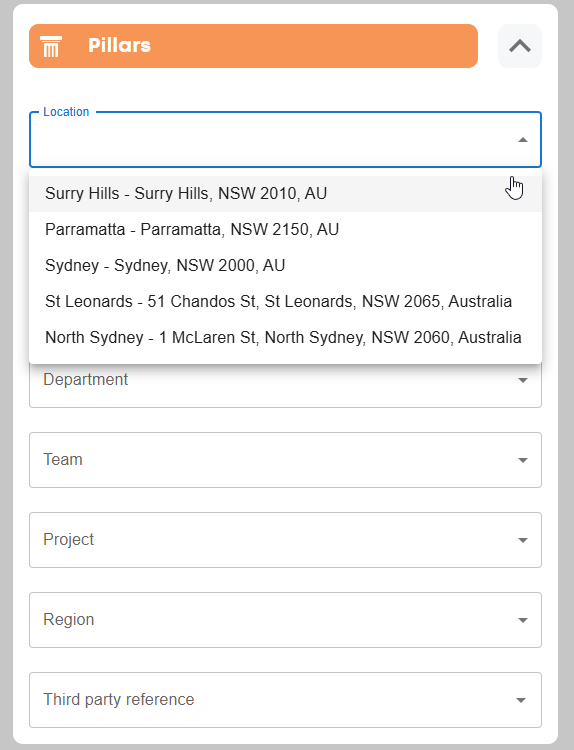
- Fill out any Pillars the employee belongs to
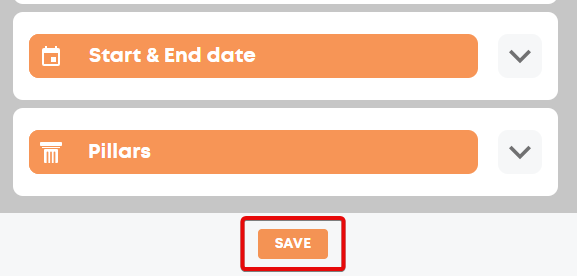
- Select 'Save'
Step 5.
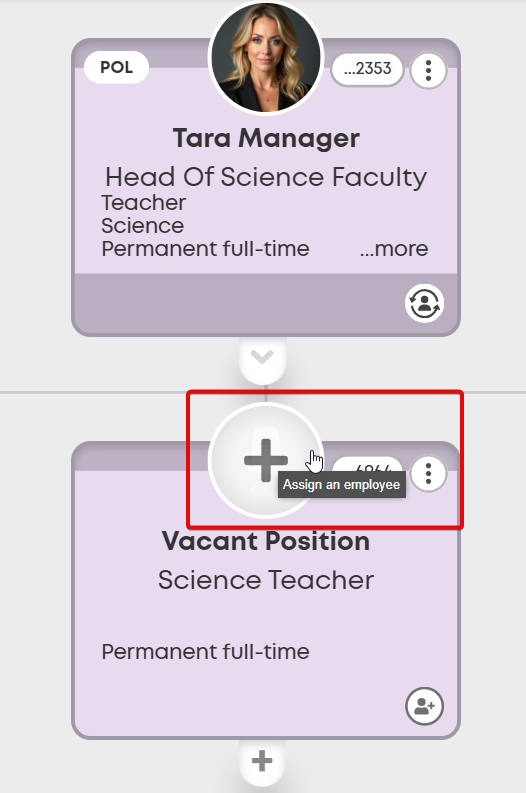
Once you have saved, the node will be created as 'Vacant' underneath the reporting line.
Hover over and Click on the Chair Icon/Circle at the top of the node to assign an employee.
Step 6.
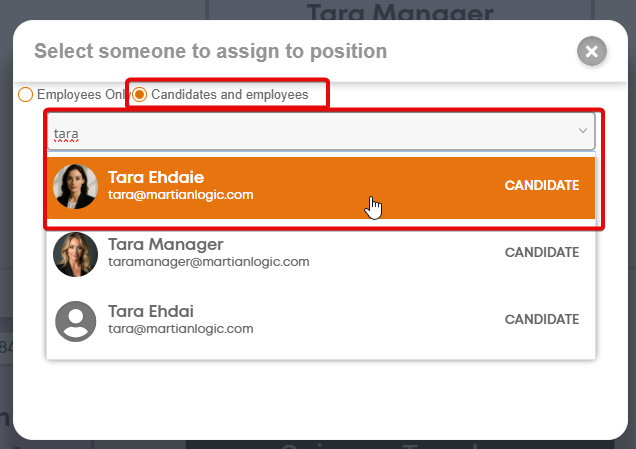
Swap the list to 'Candidates & Employees' and select the employee you created in Process 1 from the list.
Step 7.
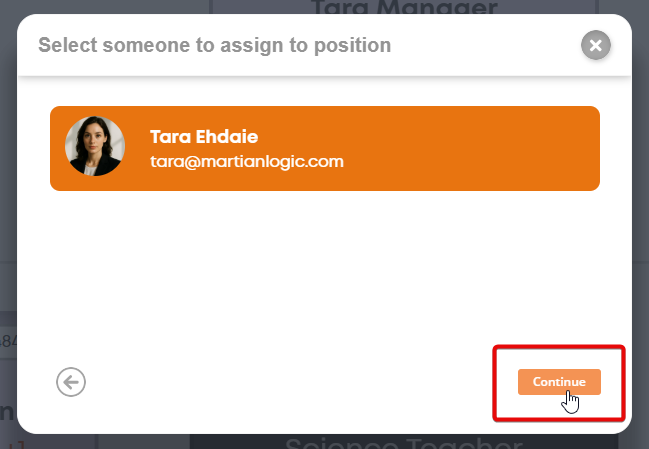
Select 'Continue'
Step 8.
The window from Step 2 Process 2 will appear again, requesting you to confirm the pay level. You can also change any other role details if required.
Select the pay level and any other details, and click 'Save'
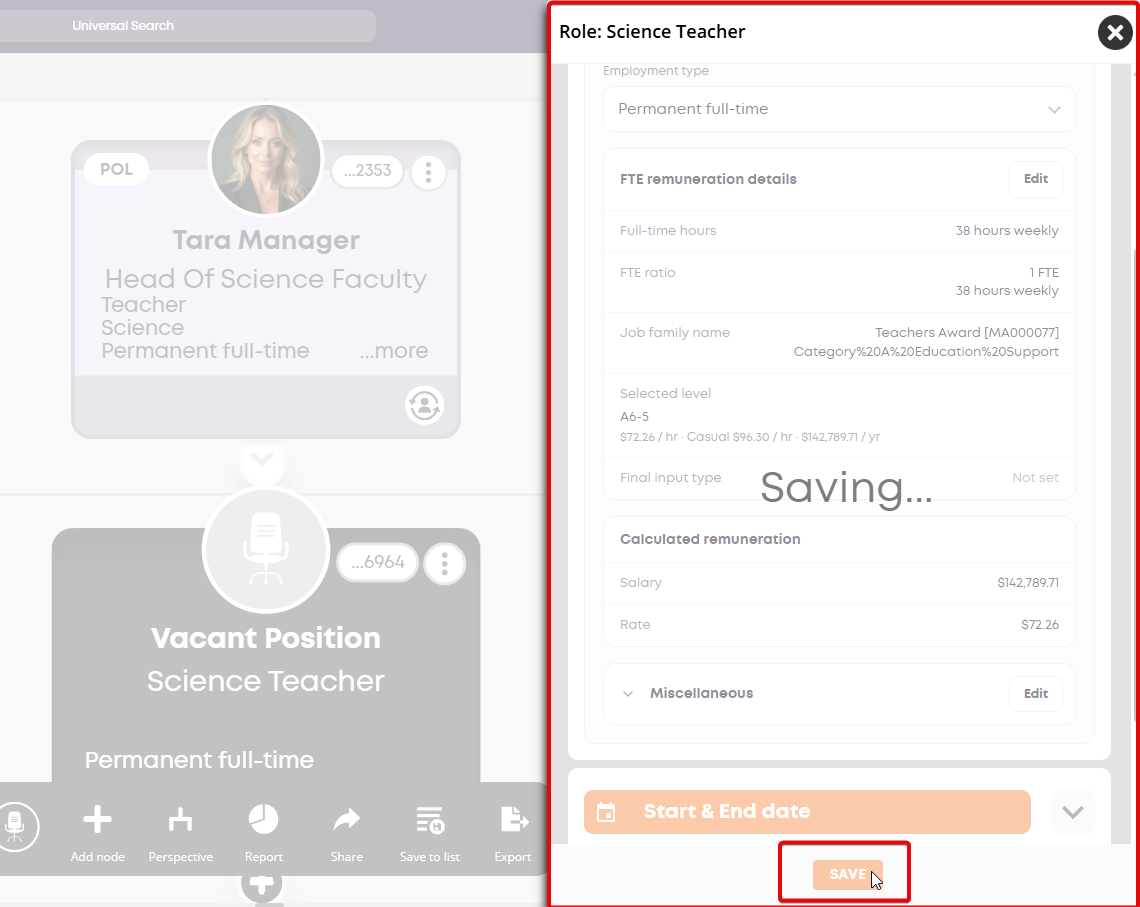
The Employee has now been manually added to the system and your org chart