![LOGO_WV-1.png]](https://help.martianlogic.com/hs-fs/hubfs/LOGO_WV-1.png?height=40&name=LOGO_WV-1.png)
Phase 1: Create the Compliance Field
Step 1.
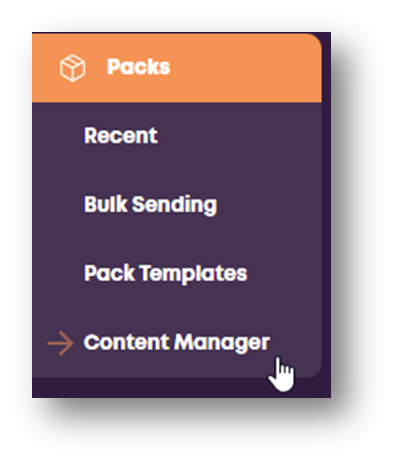
Navigate to the Content Manager and select Forms within the Packs area.
Step 2.
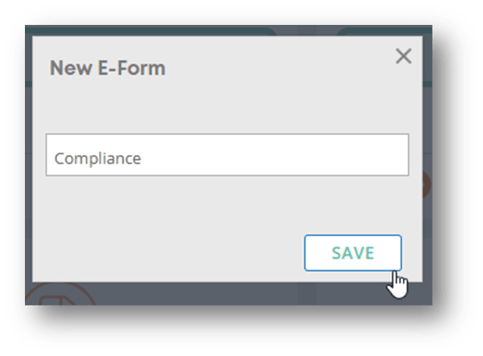
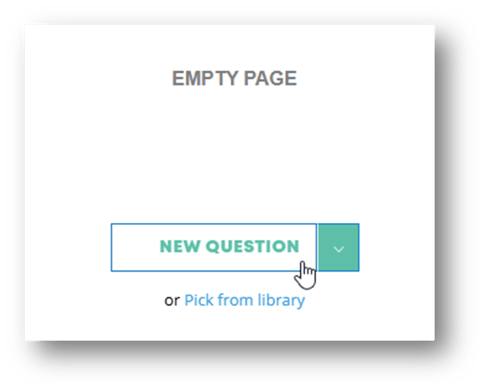
Click Create, name the form (e.g., Compliance Fields), and click New Questions.
Step 3.
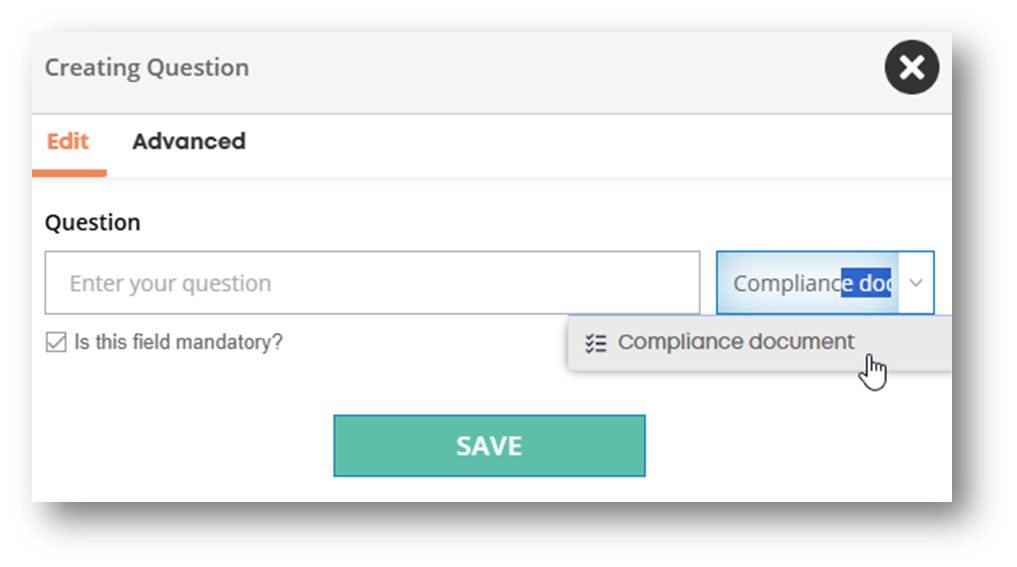
Change the field type dropdown to Compliance Document.
Step 4.
Enter the name of the specific compliance item (e.g., Mandatory Reporting) in the question/field name area.
Step 5.
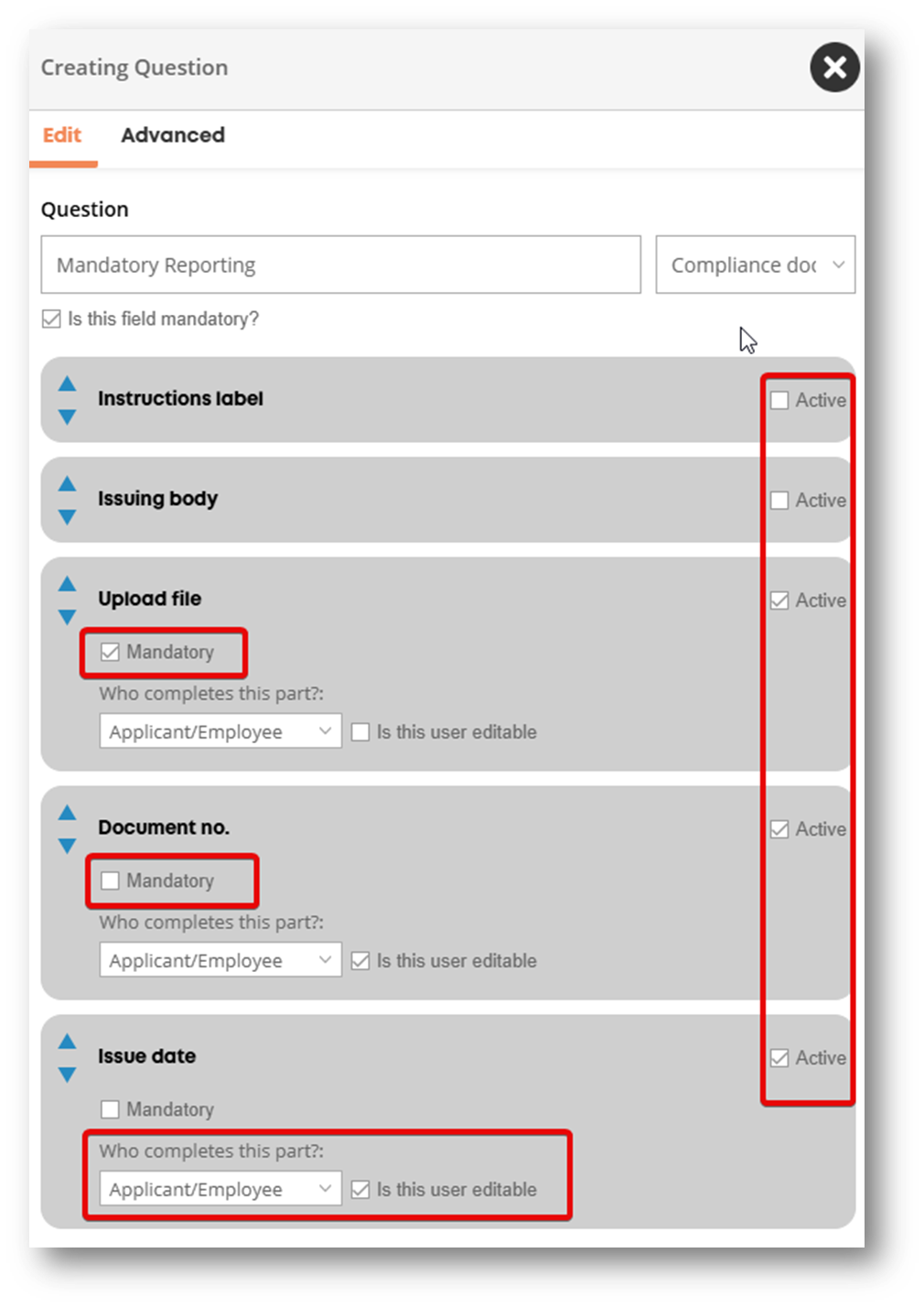
Configure the field rules based on your requirements:
- Instructions: Toggle the instructions label to Active if you need to provide guidance on how to access or complete the document.
- Issuing Body: Select this option to include or require the name of the organization that issued the document.
- File Upload: Select Mandatory to require the user to upload a photo or file of their certificate.
- Document Number: Toggle to Inactive if it isn't required (or Mandatory if it is).
- Dates: Select Mandatory for the issue date, and configure the expiry settings (e.g., set the expiry to be assigned to that specific issue date, or toggle expiry off entirely).
- Comments: Leave the comments option turned on if needed.
Step 6.
Click Save.
Step 7.
Change the status of the form to Live to make the field available in the system.

Phase 2: Link to the Compliance Library
Step 8.
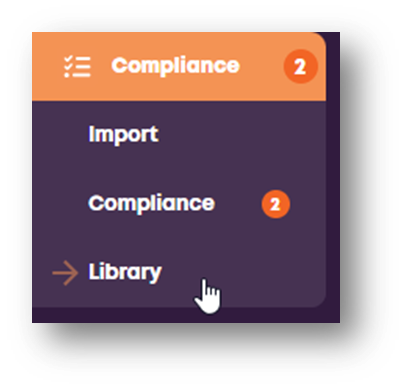
Navigate back to the Compliance Library.
Step 9.
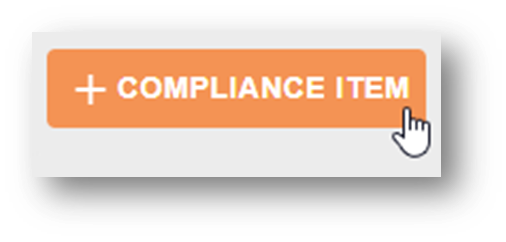
Click Compliance Item.
Step 10.
Click the Compliance Field selection dropdown and select the newly created field (e.g., Mandatory Reporting).
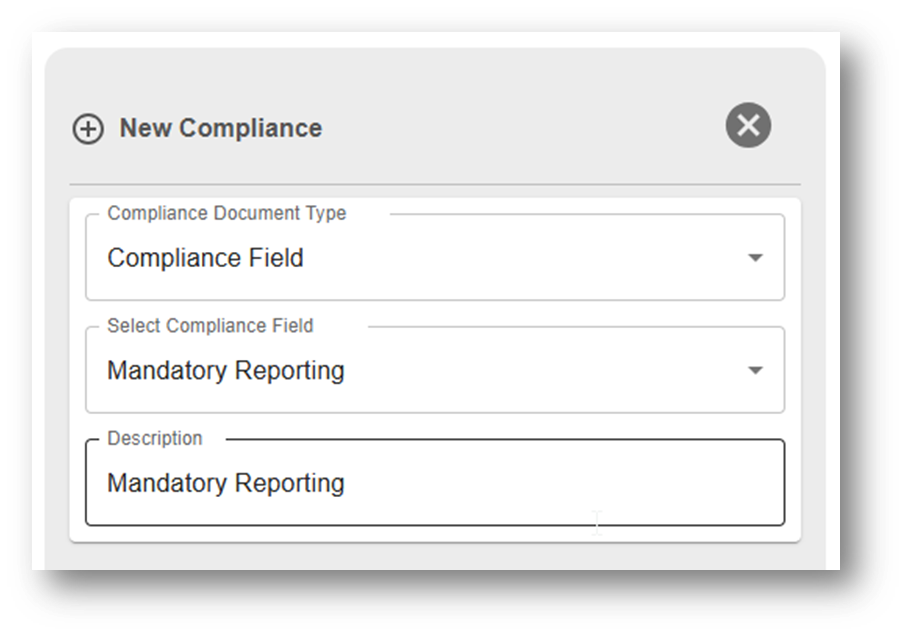
Step 11.
Proceed to the next section to configure your specific expiry rules against this compliance item.
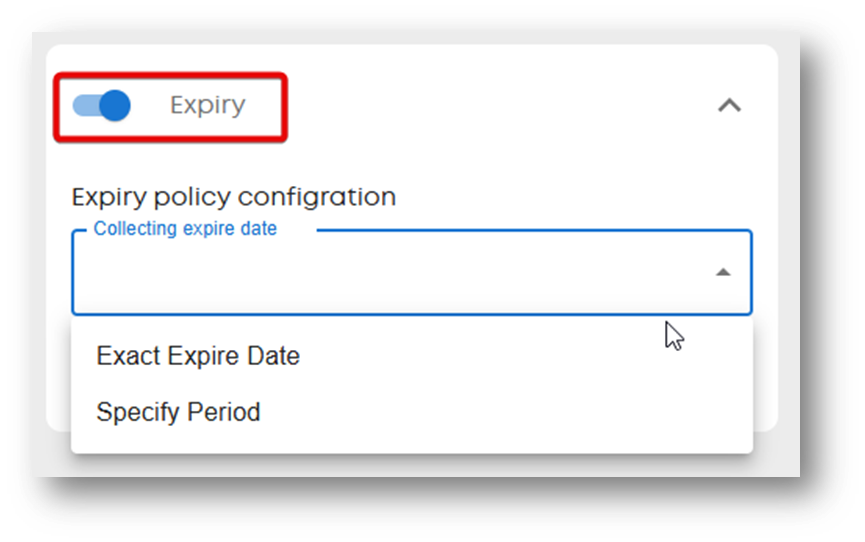
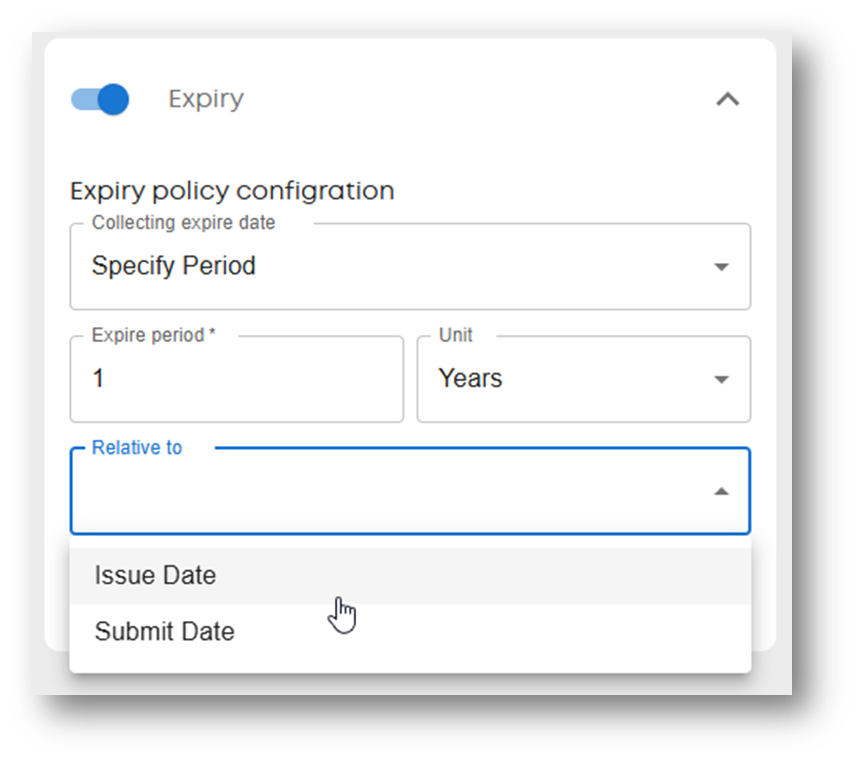
Step 12. (Optional)
If you’d like the item to automatically assign to an employees self service upon expiry, select ‘Auto Renew when item expires’
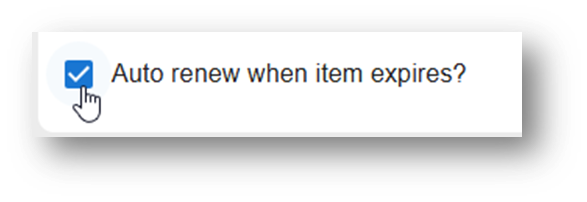
Step 13.
Click Save