![LOGO_WV-1.png]](https://help.martianlogic.com/hs-fs/hubfs/LOGO_WV-1.png?height=40&name=LOGO_WV-1.png)
You will receive the following email to activate your account. Use this log in when connecting the account in the next steps.
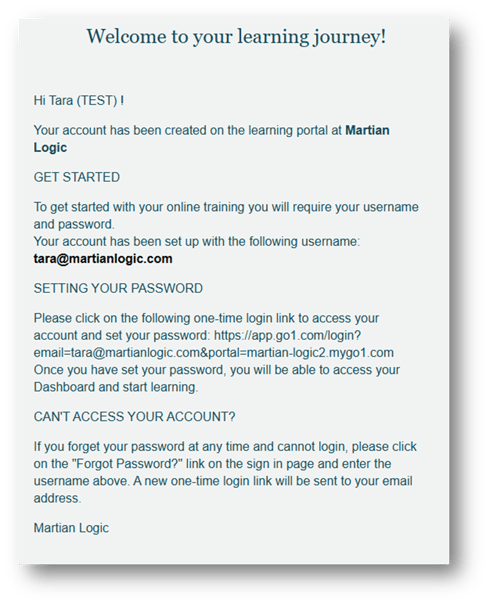
Connect the Go1 Portal to Martian Logic
Step 1
Select ‘Library’ located within the Compliance tab.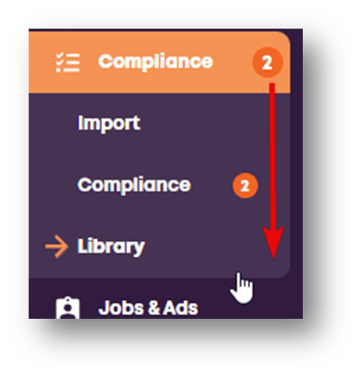
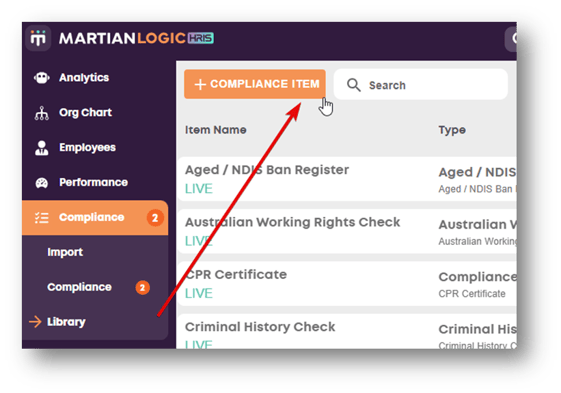
Step 2.
Select +Compliance Item from the top left of the screen
Step 3.
Select ‘Learning Management System’ from the Compliance Document Type drop down
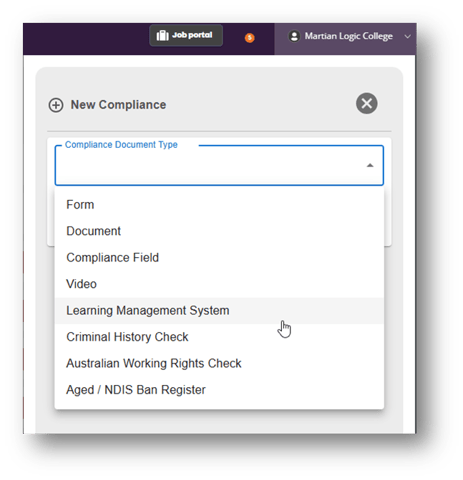
Step 4.
Select ‘GO1’ from the Learning Management System drop down
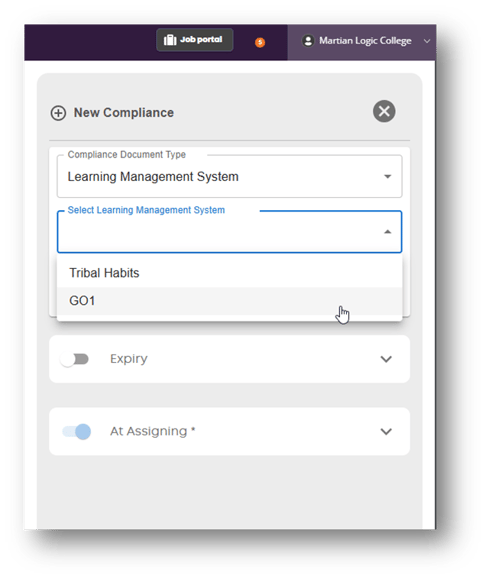
Step 5.
Select ‘Connect Account’
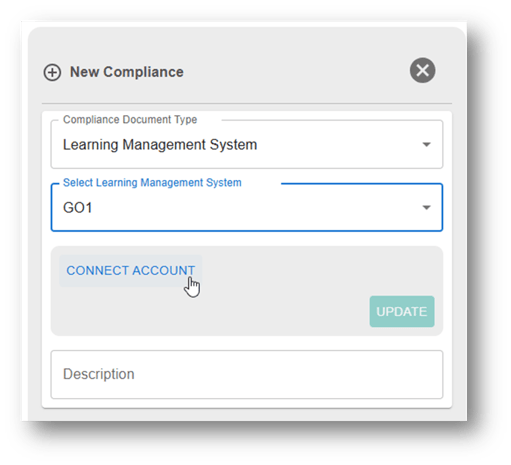
Step 6.
A browser will appear. Enter your GO1 Email Log in and Password and select ‘Log In and Connect’.
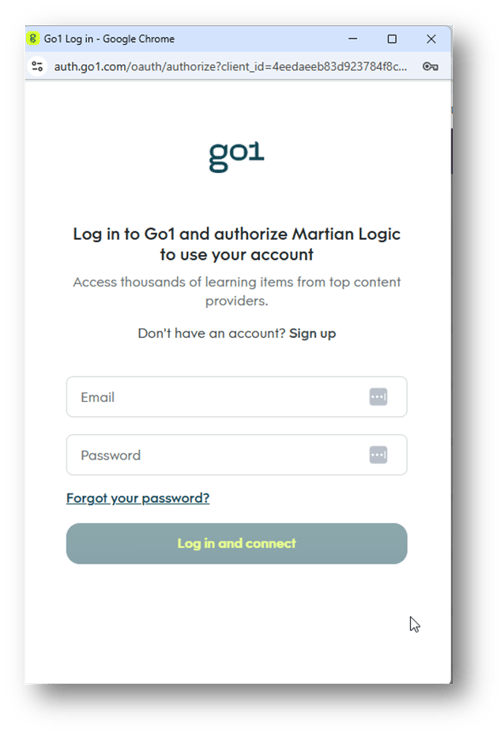
Step 7.
Once the account has been connected, an enrolment code lookup field will appear to select courses you’d like to assign to employees.
Select the course you’d like to assign > enter the description > set the expiry rule and select ‘Create’
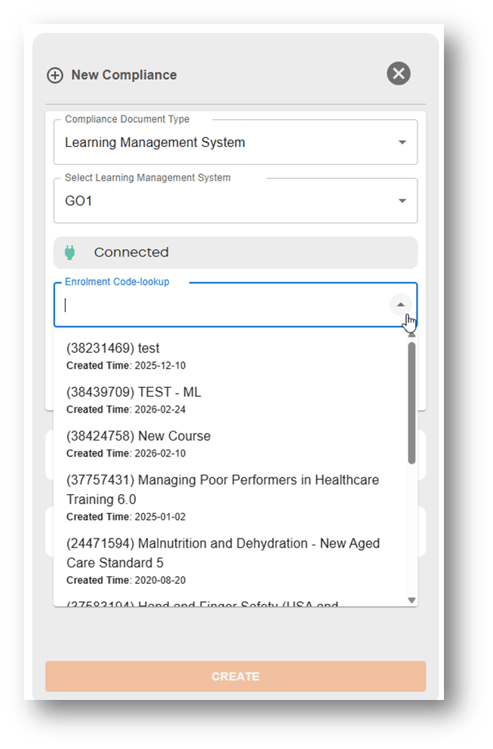
The item can now be assigned to employees
Frequently Asked Questions
- Is the content I have created myself part of my Select 10 pack?
The 10 only applies to content from the Go1 platform. You can create as much of your own content as you’d like. - Do I need to create a user account in Go1 for employees that I’d like to assign content to?
When an item is assigned to an employee through Martian Logic, it will automatically create them an account when the employee goes to action the item. This will take them straight into Go1 when clicking action. - I can’t see the Enrolment Code-lookup field, but I am logged in?
Disconnect the account, and log in again then hit refresh. At times, the connection may drop out – requiring you to log in again. - Where can I find the enrolment codes for the content I’d like to find in the lookup field?
Once you have added content to your learning library, click start on the content piece. The code will appear in the URL: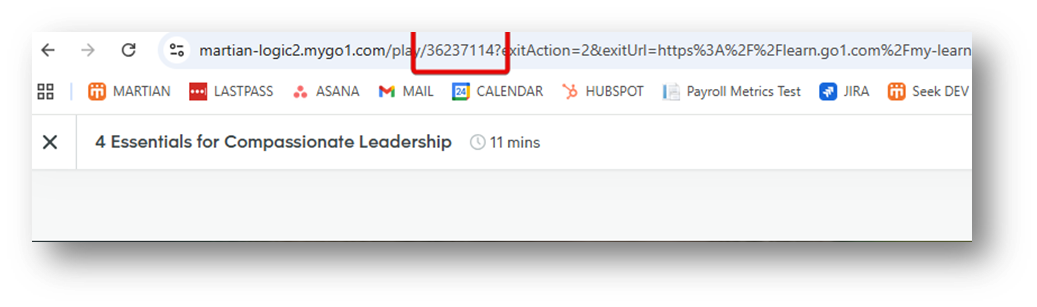
- I need help navigating the Go1 Platform. Who do I contact?
Once logged into your Go1 account. Select the Go1 bubble on your screen. This will open a window that allows you to chat to Go1’s support team, search user guides and more.