![LOGO_WV-1.png]](https://help.martianlogic.com/hs-fs/hubfs/LOGO_WV-1.png?height=40&name=LOGO_WV-1.png)
Step 1.
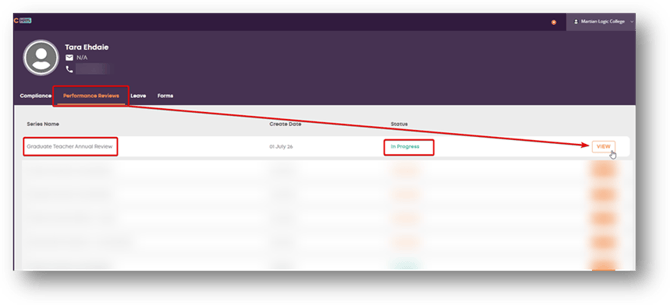
Log into your self-service portal, and select ‘Performance Reviews’ from the tabs available
Step 2.
Select ‘View’ from the right-hand side of your allocated performance review
Step 3.
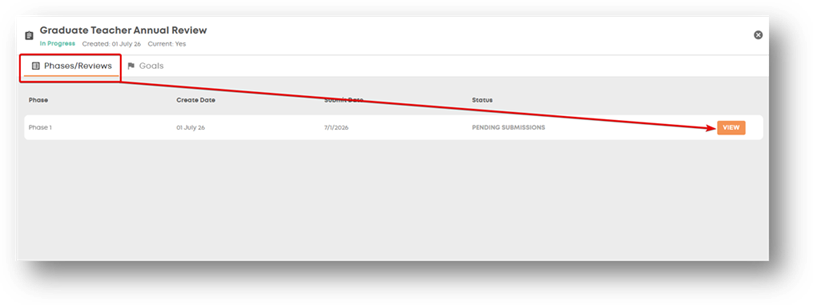
Once opened - Select ‘View’ on the right-hand side of the performance review
NOTE: you can view goals assigned to you by clicking on the ‘Goals’ tab. However, these goals are filled out through the Phases/Review tab.
Step 4.
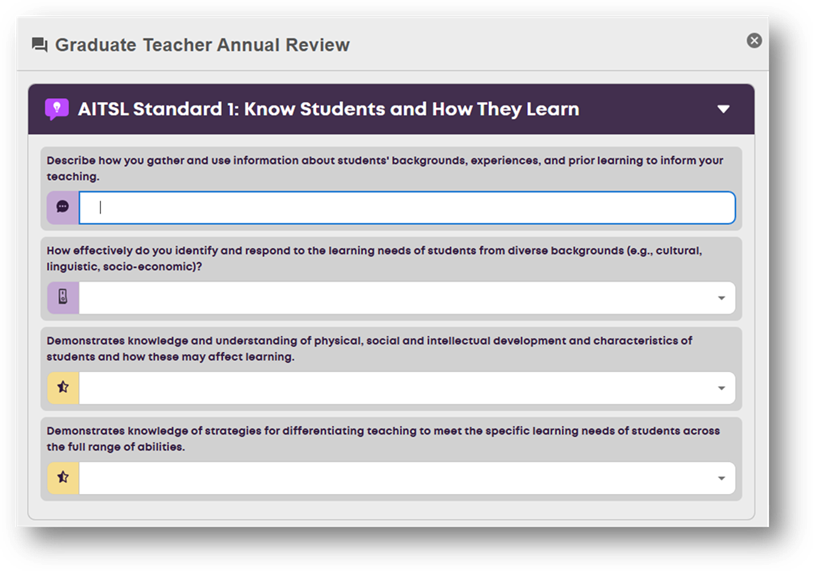
Fill out the questions assigned to you within the review
Step 5.
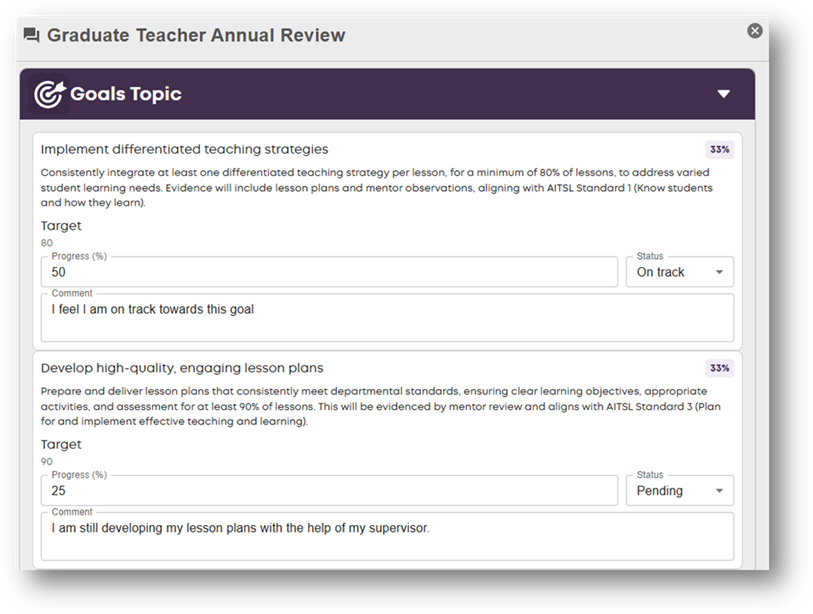
Fill out any goals that have been assigned to you, if required.
Step 6.
Once you have completed your review, you can hit save and submit.
NOTE: You can save the review as a draft and return to it by selecting ‘Save Draft’

- If your performance review has multiple phases, you will receive email notifications when it is your turn to log in again and complete any additional questions or acknowledgements.