![LOGO_WV-1.png]](https://help.martianlogic.com/hs-fs/hubfs/LOGO_WV-1.png?height=40&name=LOGO_WV-1.png)
As part your onboarding process and creating your merge documents, you can create new fields that allow you to select different options/clauses dependent on what is required in the contract.
Step 1:
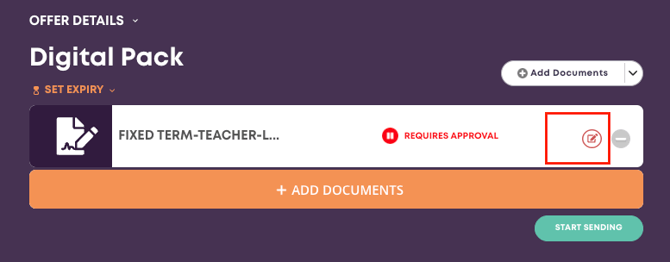
Upload the contract and choose the edit option where requires approval is listed.
Step 2:
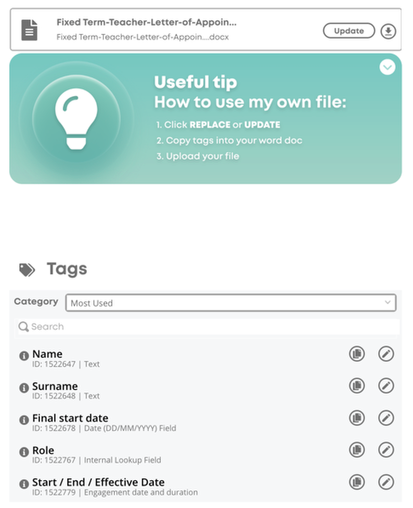
Once opened, Select ‘Doc Template’
Step 3:
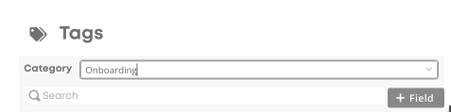
Choose the Category onboarding – This is where you will be able to create your own fields – including content blocks. Choose the option + Field.
Step 4:
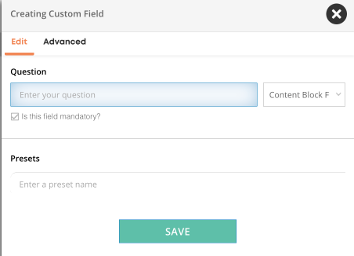
Once + Field is selected, a content block option will appear.
Step 5:
Firstly, name the content block based upon the type of optional fields. For example, if contracts require different types of options for Fulltime, part time casual etc, this is best placed for content blocks.
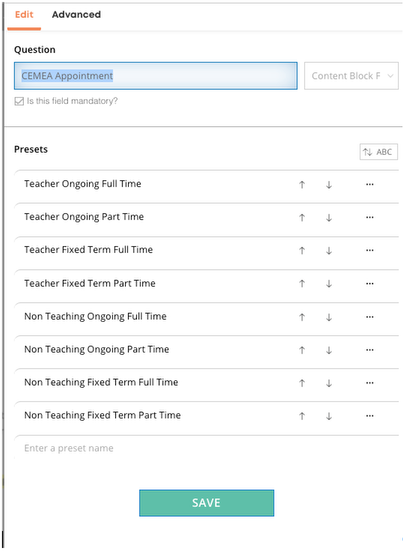
Step 6:
Add the preset and the written option you will choose. You are able to use fields from the system such as the engagement field (salary), Start and Effective from dates as well as any fields from existing forms and applications.

Step 7:
Once copied into the contract, reupload using the update option.
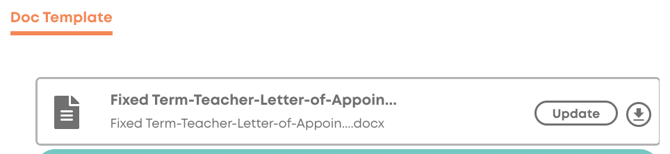
Step 8:
Once uploaded, choose Doc Editor. On the left hand side locate the newly created content block. Choose the preset value that you are including in the contract.

Step 9:
Once chose, fill out the relevant details in the engagement field or the written text of your chosen preset.
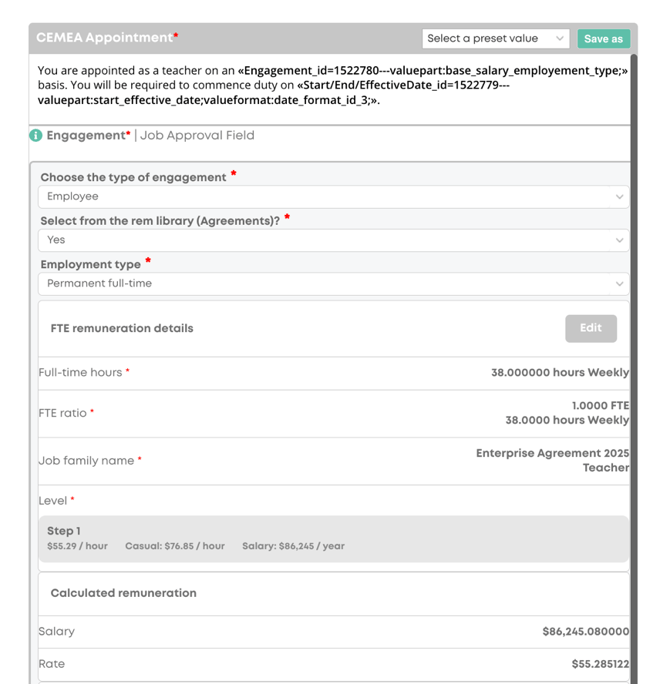
Step 10:
Once selected, the details will appear on the left hand side on your contract.
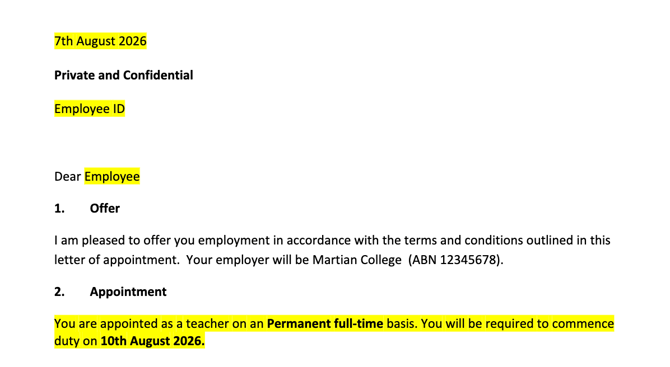
You have now created a content block!